



How to install custom fonts on an iPad or iPhone

Apple supports custom fonts in certain supported mobile apps across iOS and iPadOS, install custom fonts in a very simple process, and that allows us to use them in note apps like Goodnotes, Noteshelf, Notability, Collanote…
On the HardPeach.com website, you will be able to find different personalized fonts to install directly on your iPad or iPhone, although it is true that it is also possible to install fonts on your Mac and Windows computer, but the installation process is faster!
How to download fonts
First of all, you will need to have purchased and downloaded one of the custom fonts on your iPad or iPhone! You can find all custom fonts at the following link
How to install fonts
On the other hand, to start the installation of custom fonts on iPad or iPhone it will be necessary to install this app. The app is called iFont, and you can find them for free in the App Store.
Simply download fonts from the web to your iPad or iPhone.

Once the font is downloaded, hit the «share» icon, you will see an option to «Open in iFont» or the app of your choice.
If you don’t see «Open in iFont» or the equivalent option for your font app of choice, tap «More» and select «Copy to iFont,» or whatever app you’re using.

in iFont, tap the “Files” option at the bottom of the app. You’ll see a list of font files you’ve downloaded. To install a font, tap it in the list, and then tap the “Install on [Device Name]” option

Tap “Allow” when you’re prompted to open a configuration profile in your Settings app.
After this, access the Settings App > Profile downloaded
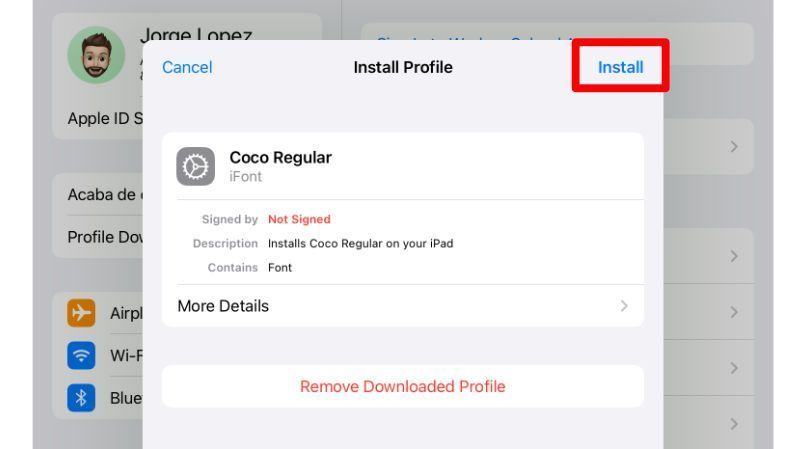
You’ll be warned that the profile isn’t signed with a key. This key is the unlock key for the iPad or iPhone. Add it, and continue the steps.
You’re now done, and the fonts should appear in any apps that support them.