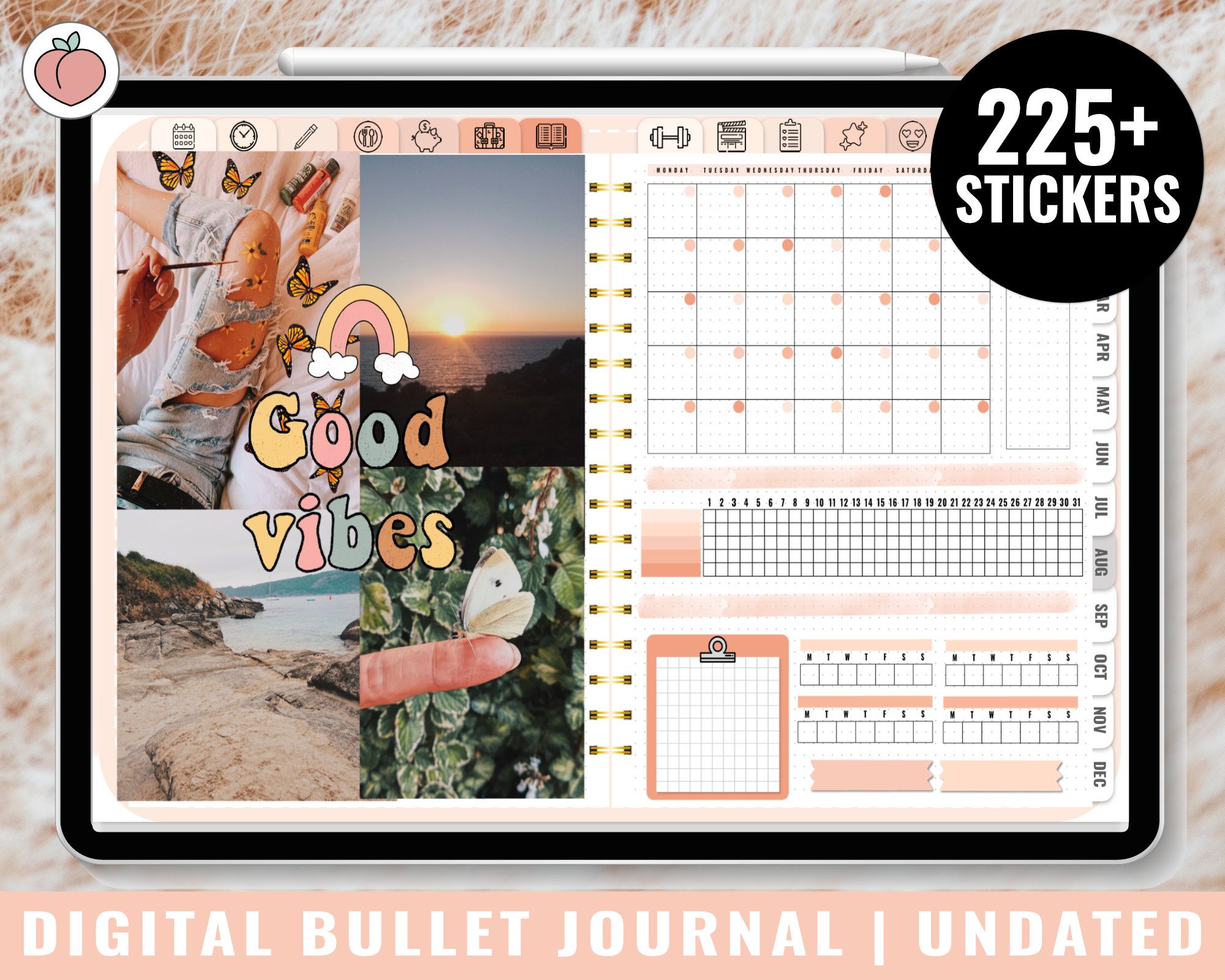

How to add digital planner to Goodnotes

Starting to use your digital planner with Goodnotes is really simple. This way you can transform your iPad, iPhone or Mac into a planner or notebook ready to use, full of customization possibilities, without forgetting that it can be carried out wherever you want.
In this tutorial we will show you how to add our digital planners to your iPad, iPhone or Mac through the Goodnotes 4 and Goodnotes 5 application.
How to add digital planner to Goodnotes 5
On your iPad ensure you have the Goodnotes 5 app (or your app of choice) installed and ready to use. Then follow these steps:
- You can find our digital planners to purchase here. Click to see
- After that, download the digital planner on your device.
- Open Goodnotes 5 and select the import option.
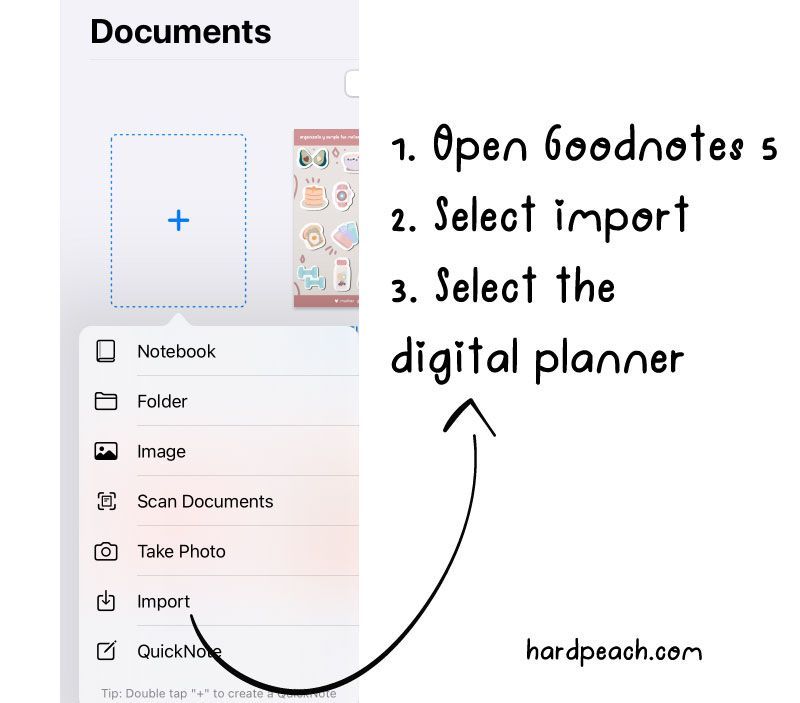
4. When you select the digital planner, a message will appear. Select «Add as new document»
5. With these steps, you can start using the digital planner in Goodnotes 5
How do I navigate the digital planner

This aspect is simple, but it is very important to know this detail.
In the Goodnotes application we can find two modes: navigation mode and editing mode. In navigation mode, the tabs of the digital planners are activated. This is what makes it interactive to access each tab quickly. The edit mode is when you can write, draw, move things, etc. To switch between these two modes, simply click on the pencil icon in the upper right corner of the screen.
How to add more pages to the digital planner

You can add as many pages as you need in the different digital notebooks or digital planners.
To do this and add more pages you must select the icon of a page with a + sign and select the first option available to add an equal page.
You can try the different alternatives to be able to choose the one you need the best.
How to decorate a Digital planner with stickers
If you purchased the stickers from my shop, the stickers came in a zip file format. You can use the digital stickers directly in the goodnotes app, to personalize and decorate the digital planner!
You can check the full tutorial here